macpak Documentation
Overview
macpak is an interactive wrapper around Homebrew for macOS. It lets you browse, install, and uninstall Homebrew packages through a fuzzy-finder interface with live previews, so you spend less time typing commands and more time getting things done. It also includes a zapper that can completely remove applications installed outside of Homebrew, along with their leftovers.
Why macpak?
If you use Homebrew, you’ve probably been through this: you want to install something but can’t
remember the exact package name, so you run brew search, scan through a long list of results, then
run brew info on a few to check which one is right, and finally run brew install. Even when you
know the exact name, you’d still want to run brew info first. Installing blindly might land you an
outdated version or something that isn’t quite what you expected. That’s three or four commands just
to install one package.
Uninstalling is worse. You run brew list to find what you have, pick something to remove, run
brew uninstall, and then wonder if it actually cleaned everything up. It usually doesn’t. Homebrew
leaves behind preferences, caches, and support files scattered across your system.
And if the app wasn’t installed through Homebrew at all? Dragging it to the Trash only removes the
.app bundle. Configuration files, caches, and other hidden data stay behind in places like
~/Library and /Library.
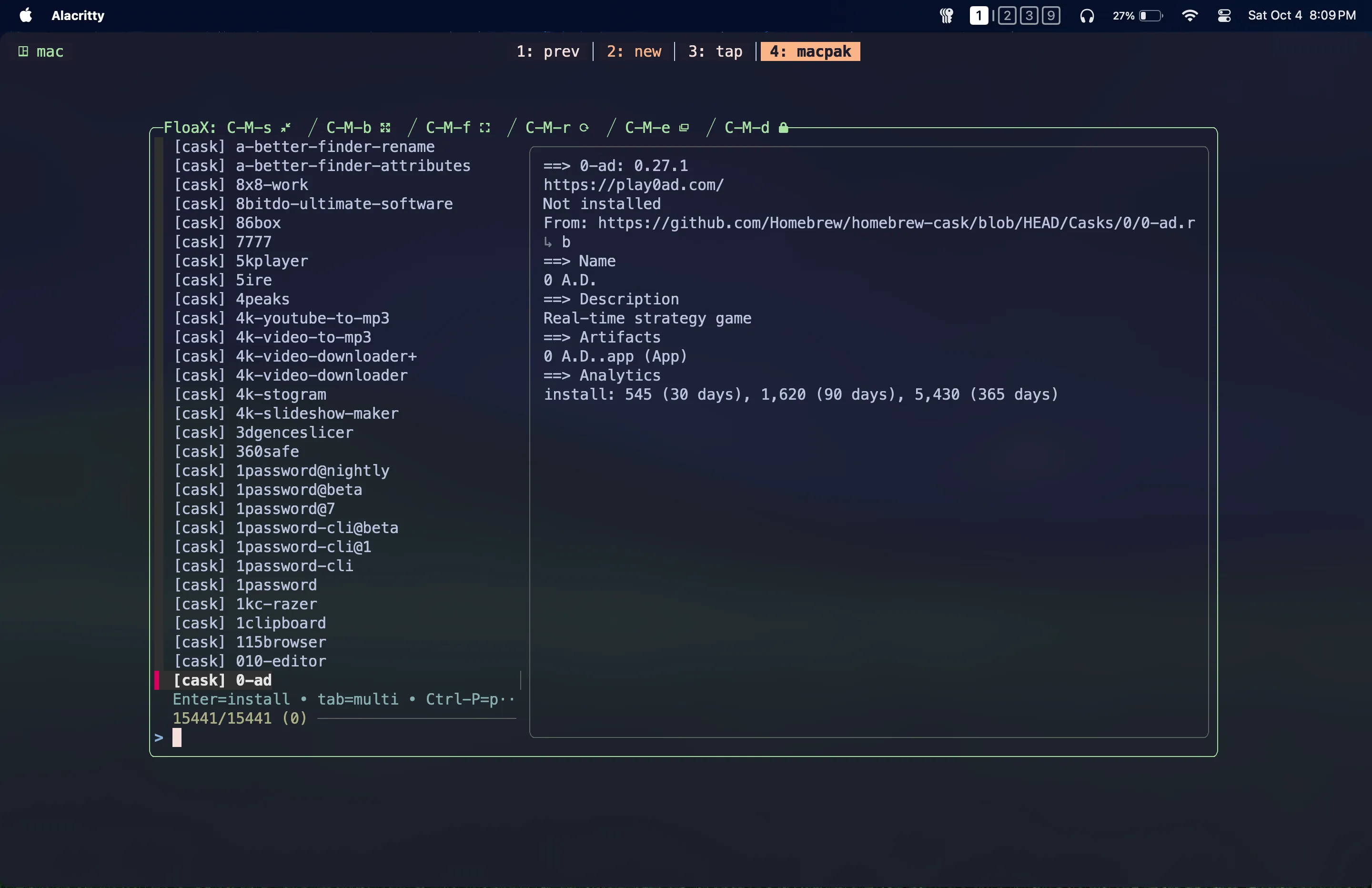
macpak turns each of these into a single step. Run macpak search and you get an interactive list
of every formula and cask, with a live brew info preview right next to it. Press Enter to install.
Run macpak list and you see everything you’ve installed, ready to uninstall with Enter. After
removal, macpak automatically scans your system for leftover files and lets you clean them up. For
non-Homebrew apps, macpak zap finds the app and all its hidden files across your system so you can
remove everything in one go.
Requirements
Hard dependencies (must be installed):
- Homebrew (brew)
- fzf
- bash (macpak uses bash-specific features and runs under bash regardless of your default shell)
Optional tools:
- trash CLI (safe deletions; fallback to rm -rf if missing)
- tmux (enables split-pane previews in interactive mode)
Installation
Use Homebrew to install macpak (Preffered):
brew install --formula kavindujayarathne/macpak/macpak(Optional) You might need to configure your shell to enable completion provided by homebrew packages: Homebrew Shell Completion. macpak provides bash and zsh completions.
Configuration
Custom config location
Place it inside $HOME/.config/macpak/
Default config
Download config.sh (default config file)# Deletion
# 1 = prefer safe deletes via Trash, 0 = permanent removal (rm -rf)
USE_TRASH=1
# Brewfile integration
# 1 = auto-update Brewfile after installs and uninstalls, 0 = disable
AUTO_BREWFILE=1
# Override to change the Brewfile location
BREWFILE_PATH="$HOME/.config/brewfile/Brewfile"
# Caching
# Override to change the cache location
INDEX_PATH="$HOME/.cache/macpak/index.tsv"
# Cache freshness window in seconds (default: 86400 = 24h)
INDEX_TTL_SECS=86400
# 1 = use cached index for queries, 0 = query Homebrew live
USE_CACHE_FOR_QUERY=1
# Leftovers scanning
# 1 = scan for leftover files after uninstall, 0 = skip
AUTO_SCAN_AFTER_UNINSTALL=1
# Paths to scan for leftovers. Override to add or remove scan directories
ROOTS=(
  "/Applications"
  "/Library"
  "/private/etc"
  "/private/var/db/receipts"
  "/private/var/root/Library"
  "/private/var/log"
  "/opt/homebrew"
  "/usr/local"
  "/Users/Shared"
  "$HOME"
)
# Paths to exclude from leftover scans (empty by default)
EXCLUDES=()All default configurations can be overridden in ~/.config/macpak/config.sh.
Usage
macpak search [query]
The search command lets you explore the entire Homebrew catalog of formulae and casks with a fuzzy-finder interface and live package details.
When you run:
macpak searchmacpak checks whether a cached index.tsv is still valid.
- If the cache is younger than 24 hours, results load instantly from the cache.
- If the cache is expired, macpak automatically rebuilds the index by refreshing the Homebrew catalog (this may take ~10 seconds). A fresh cache is then valid for the next 24 hours.
The default cache file is stored at:
INDEX_PATH="$HOME/.cache/macpak/index.tsv"If you want macpak to use a different location for the index, override INDEX_PATH in your
~/.config/macpak/config.sh.
By default, the cache is valid for 24 hours (86,400 seconds). You can change this freshness period by overriding:
INDEX_TTL_SECS=86400For example, setting INDEX_TTL_SECS=43200 would make the cache refresh every 12 hours.
For more details about macpak’s caching, see Cache index.
Once the catalog loads, macpak opens an interactive fzf interface:
- The left pane lists all available packages.
- The right pane displays a live brew info preview of the currently selected item.
See Filtering Results and Pager support for interaction details.
Installing Packages
- Press Enter on a highlighted package to install it immediately.
- You can also select multiple items (using the fzf multi-select feature) and press Enter to install them all in sequence.
Brewfile Updates
During installation, macpak automatically updates your Brewfile and displays whether the update succeeded. If you prefer not to update the Brewfile automatically, you can override this by setting:
AUTO_BREWFILE=0in your ~/.config/macpak/config.sh. (This affects both macpak search and macpak list.)
Passing a search query
You can pass a query directly to skip loading the entire catalog:
macpak search aerospaceBy default, this query searches the cached index. If you want it to always hit the live Homebrew catalog, set:
USE_CACHE_FOR_QUERY=0in your configuration.
macpak list [query]
The list command shows all installed Homebrew formulas and casks in an interactive fuzzy-finder interface with live package details.
When you run:
macpak listmacpak loads installed packages directly from Homebrew. Unlike search, this command doesn’t rely on a cached index. Results are instant because it only shows what is already on your system.
For formulas, macpak only shows packages you explicitly installed (using --installed-on-request),
not dependencies that were pulled in automatically. This keeps the list focused on what you actually
chose to install. Casks are always shown since they are installed by request.
Once the list loads, macpak opens an interactive fzf interface:
- The left pane lists all installed packages.
- The right pane displays a live brew info preview of the currently selected item.
See Filtering Results and Pager support for interaction details.
Uninstalling Packages
- Press Enter on a highlighted package to uninstall it immediately.
- You can also select multiple items (using the fzf multi-select feature) and press Enter to uninstall them all in sequence.
After a package is uninstalled, macpak automatically triggers a leftover scan for that package. If you don’t want this automatic behavior, you can set:
AUTO_SCAN_AFTER_UNINSTALL=0in your ~/.config/macpak/config.sh.
See Leftover scanning and Removing leftovers for how cleanup works.
Brewfile Updates
After uninstalling a package, macpak updates your Brewfile automatically. To disable automatic Brewfile updates, set:
AUTO_BREWFILE=0in your configuration. (This affects both macpak search and macpak list.)
Passing a query
You can pass a query directly to pre-filter the installed list:
macpak list mullvadThis limits the picker to only entries that match the query.
macpak zap <keyword>
The zap subcommand is designed for non-brew applications. Normally, dragging an app to the Trash only removes the .app bundle itself, leaving behind preferences, caches, and support files. With zap, macpak helps you completely remove the application along with its relevant leftovers.
macpak zap "vmware fusion"👉 Important
If your keyword contains spaces, wrap it in quotes (single ’ or double “). For example, macpak zap “vmware fusion”. Without quotes, only the first word would be taken as the keyword, and the rest would be ignored.
The keyword you provide is used to scan across known system and user paths, matching all files and directories for the keyword.
See Leftover scanning and Removing leftovers for how results and deletion are handled.
macpak cache-refresh
The macpak cache-refresh command lets you manually force a refresh of the cache at any time:
macpak cache-refreshYou’ll see progress while the catalog is updated.
macpak doctor
The macpak doctor command checks your environment and reports:
- Hard dependencies (must be installed): brew, fzf, bash.
- Optional dependencies (enhanced features if available): trash (safe deletions), tmux (split-pane pager).
It also prints all configuration variables used by macpak.
- Default values are shown plainly.
- Overridden values (via ~/.config/macpak/config.sh) are marked with an asterisk *.
Use this command to quickly verify dependencies, and to review or debug your macpak configuration.
Logic Explanations
Cache index
When you run macpak search, macpak needs the full Homebrew catalog of all formulas and casks.
Fetching this directly from Homebrew every time would take around 10 seconds on each run, which
would feel slow and clunky.
To solve this, macpak caches the catalog into a local file called index.tsv.
- The first time you run macpak search, macpak fetches the catalog live and writes it into the cache.
- On subsequent runs, the cache is used, so the search interface loads instantly.
This gives you a fast, responsive experience without waiting for Homebrew every time.
However, if the cache were used forever, it would quickly become outdated. To prevent this, macpak sets an expiration on the cache:
- By default, the cached index.tsv expires after 24 hours (86,400 seconds).
- When expired, the next
macpak searchrun will show a message:
Refreshing Homebrew catalog…macpak then refreshes the cache with the latest formulas and casks. After that, the cache is valid again for another 24 hours.
This cycle ensures searches remain fast but also reasonably fresh.
Filtering Results
In the fzf list of all packages, every entry has a label that indicates whether it’s a cask or a formula. The label appears before the package name, e.g., [cask] docker-desktop or [formula] openssl.
You can use these labels directly in the fzf search prompt to narrow down results:
- Typing [cask] will restrict the list to only cask entries.
- Typing [formula] will restrict the list to only formulas.
- You can also combine a label with a keyword to refine further. For example, [cask] docker will only show cask items that match “docker”, ignoring formulas. The same logic applies to formulas.
Examples:
- [cask] docker → shows only cask entries related to Docker (e.g., docker-desktop).
- [formula] docker → shows only formula entries related to Docker (e.g., docker-compose, docker-cli).
- [cask] j → shows only cask entries starting with “j”.
- [formula] openssl → shows only the OpenSSL formulas, excluding cask variants.
Pager support
The preview pane on the right is read-only. If you want to copy text, follow links, or search inside the full brew info, press Ctrl-P.
When the pager is open, if you have vi mode enabled in your terminal, shell, or tmux (if installed), you can move around the output using your normal motions, copy any text you need, and grab URLs to open in a browser. Searching (/) is provided by less, so you can always find terms inside the output.
- Inside tmux: macpak opens a new bottom split (via
tmux split-window -v) runningbrew info … | less. Press q to close the pager pane and return to the picker. - Outside tmux: macpak runs less in the current terminal. Quit with q to return to the picker.
The pager uses LESS=-S, so long lines don’t soft-wrap. Use the arrow keys to move up, down, or
horizontally as needed.
Leftover Scanning
When the leftover scan starts, results are loaded into a new fzf interface where the default prompt shows as:
Strict >This represents strict mode.
You can toggle between two modes:
- Ctrl-S (Strict): Shows regex-filtered results (fewer false positives, less clutter).
- Ctrl-R (Relaxed): Shows unfiltered matches (may include extra entries but ensures nothing is missed).
⚠️ Warning
Switching between strict and relaxed resets your current selections. You must choose leftovers from one mode only.
This dual approach exists because some names can cause irrelevant matches (e.g., obs may also catch “observer”), while regex filtering may sometimes hide valid leftovers (e.g., claudefordesktop for the “claude” app). You decide which mode gives the cleanest results.
By default, macpak scans for leftovers inside a set of system and user paths defined in the ROOTS array:
ROOTS=(
"/Applications"
"/Library"
"/private/etc"
"/private/var/db/receipts"
"/private/var/root/Library"
"/private/var/log"
"/opt/homebrew"
"/usr/local"
"/Users/Shared"
"$HOME"
)You can override this list in your ~/.config/macpak/config.sh if you want to scan a different set
of paths.
To exclude certain locations from being scanned, use the EXCLUDES array (empty by default):
EXCLUDES=()For example:
EXCLUDES=(
  "/Library/Developer"
  "$HOME/Developer"
  "$HOME/dotfiles"
  "$HOME/.Trash"
)
👉 Important
When overriding ROOTS or EXCLUDES, always define them as arrays (parentheses, with each path in quotes and separated by spaces). Writing them as a plain string will break scanning logic.
Removing Leftovers
When you proceed with leftover cleanup, macpak separates the paths into groups based on permissions:
- User-writable → moved to Trash (default). If Trash fails, macpak shows the affected paths and asks for confirmation before falling back to permanent removal (rm -rf).
- Privileged → removed permanently with sudo, since elevated privileges are required (and Trash can’t be used for these paths).
- Shared (world-writable dir) → paths found in shared directories like
/Users/Shared, where any user on the machine can create files. These are listed separately because they may contain items belonging to other users, if there are any on the machine. macpak shows these paths at the end and asks whether to remove them with elevated privileges or skip them for manual removal.
The Shared (world-writable dir) group only appears when such paths are detected. If only shared paths are found, macpak skips the initial confirmation and proceeds directly to handle them.
If you prefer to always delete leftovers permanently (without using Trash), override this behavior in your config:
USE_TRASH=0FAQ
Q: Does macpak replace Homebrew?
No. macpak is built on top of Homebrew. It adds an interactive layer for searching, installing, and
uninstalling packages, plus leftover cleanup that Homebrew doesn’t handle. You still need Homebrew
installed.
Q: My default shell is zsh. Will macpak work?
Yes. macpak uses #!/usr/bin/env bash in its entry point, so it runs under bash regardless of your
default shell. You just need bash installed on your system (macOS includes it by default, though you
can also install a newer version via Homebrew).
Q: Can I customize which directories macpak scans for leftovers?
Yes. Override the ROOTS array in ~/.config/macpak/config.sh to add or remove scan paths. You can
also use the EXCLUDES array to skip specific directories. See
Leftover Scanning for details.
Q: Is it safe to use on a shared or family Mac?
macpak detects shared (world-writable) directories (like /Users/Shared) and handles them separately.
Instead of automatically removing items found there, it lists them and asks whether you want to
remove them or handle them manually. This prevents accidentally deleting items that may belong to
other users on the machine.
Q: What happens if I zap the wrong app?
macpak uses Trash by default for user-writable paths, so you can recover files from the Trash if
needed. Privileged paths are removed permanently with sudo, so review the listed paths carefully
before confirming.
Q: Can I use it without fzf?
No. The interactive fuzzy-finder interface is central to how macpak works for searching, selecting
packages, and picking leftovers.
Q: Does it support Intel and Apple Silicon Macs?
Yes. macpak works wherever Homebrew is supported.
Q: Can I use it without a Brewfile?
Yes. Brewfile integration is optional. Set AUTO_BREWFILE=0 in your config to disable automatic
Brewfile updates.
License
macpak is licensed under the MIT License.
Other Links
macpak Main Repository
macpak Homebrew Tap Repository
Story Behind macpak