Symmetric vs Asymmetric encryption
You guys might know in the modern world, encryption is everywhere, from HTTPS to secure messaging, blockchain, password vaults, VPNs, and beyond. When it comes to encryption, there are two concepts that we need to talk about, which are symmetric encryption and asymmetric encryption. We can define them as the fundamental building blocks of all modern cryptography.
Let’s talk about them…
What does it mean by Symmetric Encryption?
Symmetric encryption means you encrypt or decrypt something using just a single passphrase. If you want more clarity there, that means there are no multiple keys or passphrases separately for encryption and decryption. It’s just a single passphrase that is used for both encryption and decryption. So anyone who knows the passphrase can decrypt the encryption. It’s easy, fast, and simple.
Here are some examples of symmetric encryption algorithms:
- AES
- ChaCha20
- Blowfish
Generally, Wi-Fi encryption (WPA2), VPN tunnels, BitLocker, ZIP file encryption, those sorts of things use symmetric encryption.
Symmetric encryption with GPG
Let’s try out how symmetric encryption works.
First, I’m going to create a file called secret.txt with a random message in it.
For that, I use the below command.
echo "Secret Message" > secret.txt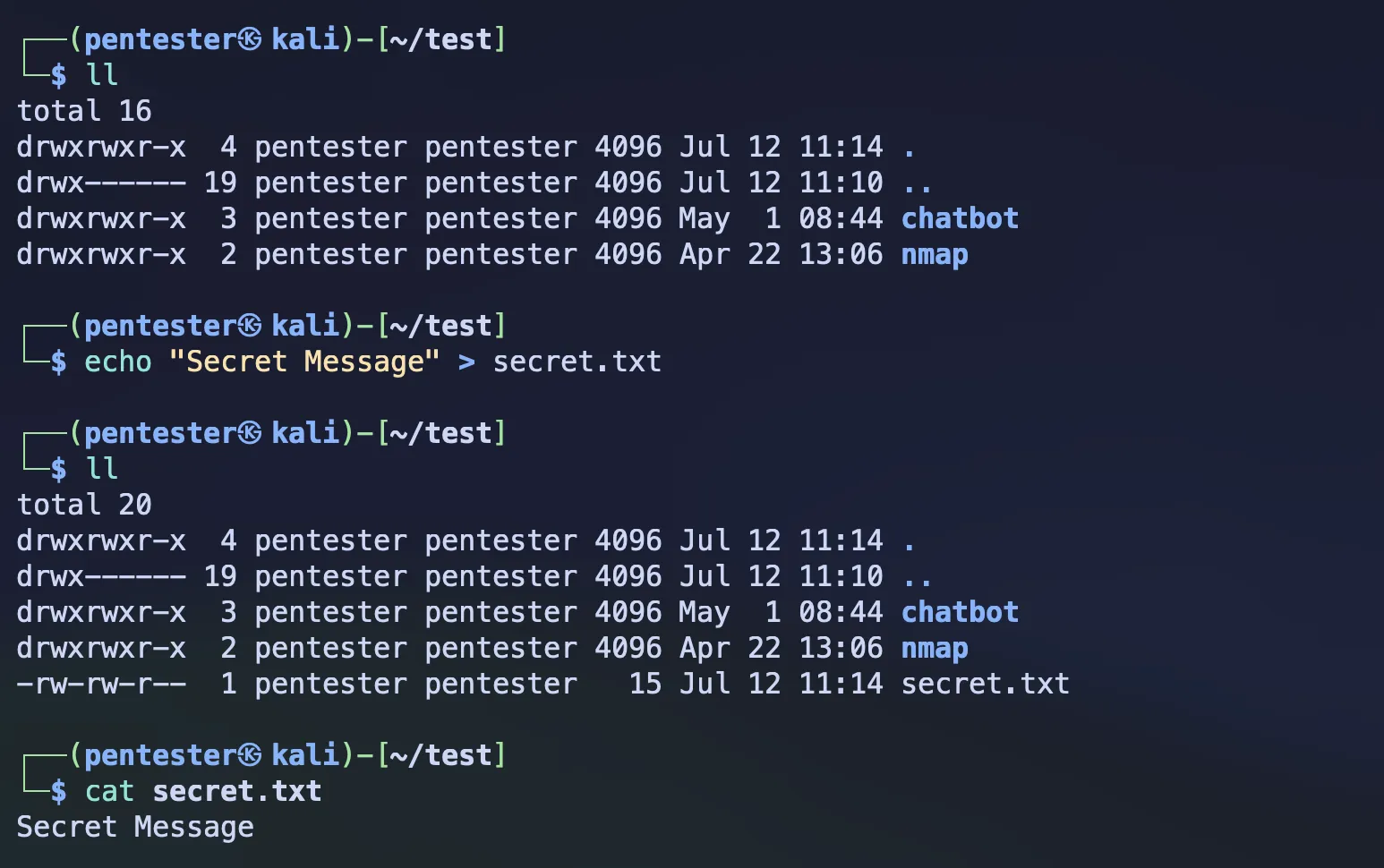 Source by author
Now you can encrypt the secret.txt file with the below command.
gpg --symmetric secret.txtWith the above command, it will ask for a passphrase before it completes the encryption, and that passphrase is what’s going to be used for both your encryption and decryption.
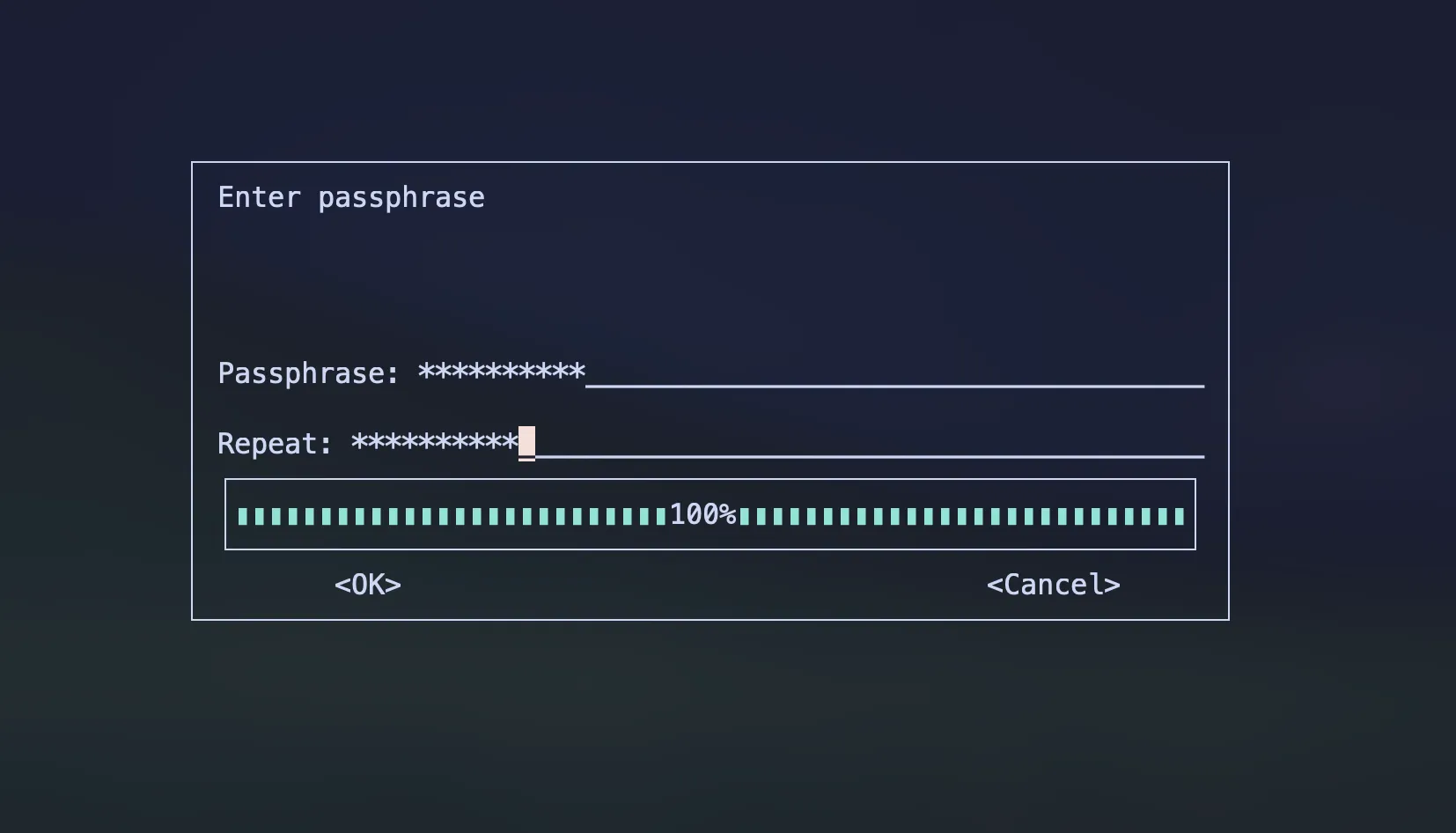 Source by author
After the passphrase, it creates the secret.txt.gpg file, which is the encrypted secret.txt
file. And that’s it for encryption.
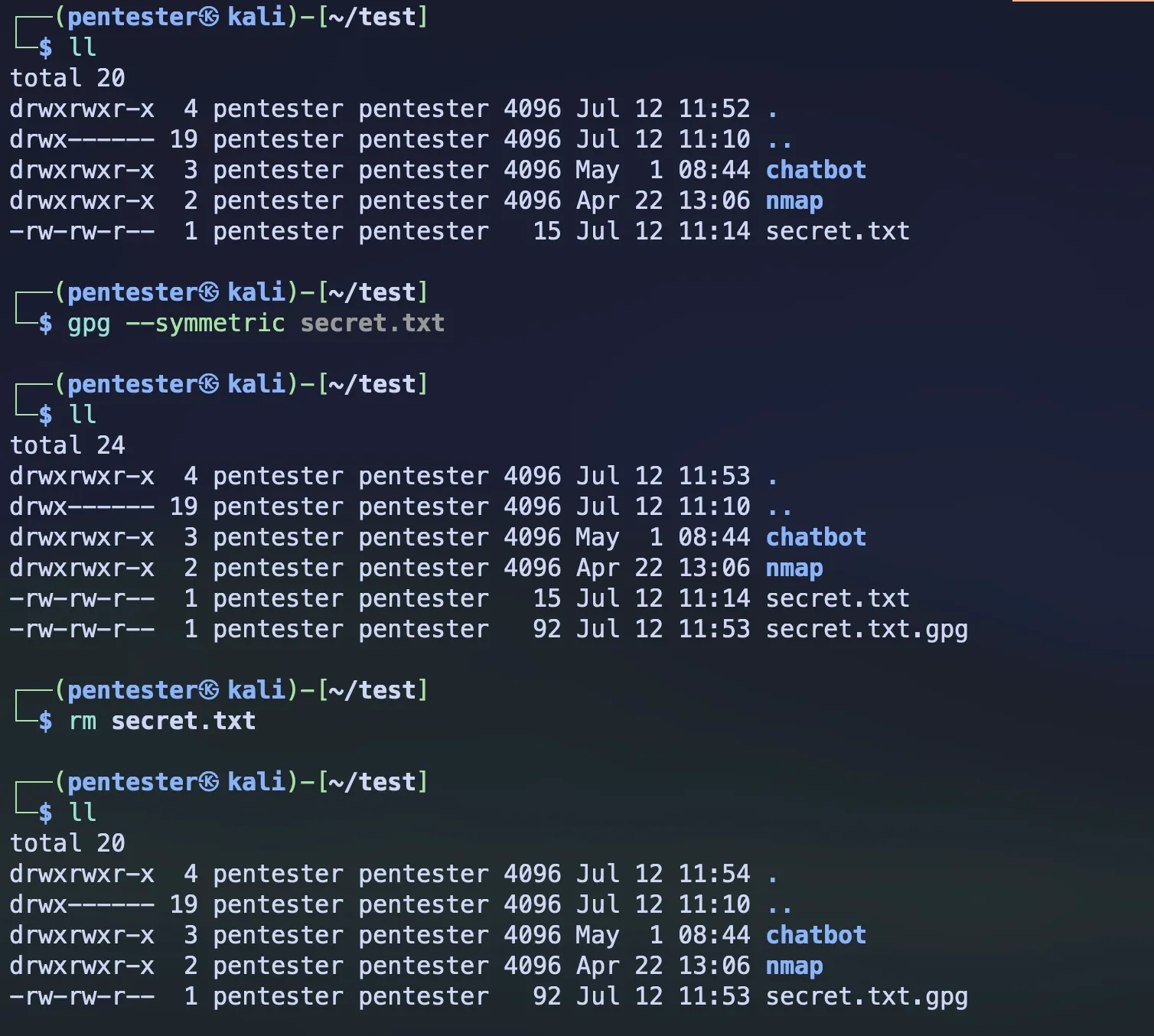 Source by author
You can see whether it’s been encrypted or not by going inside the file using an editor
vim secret.txt.gpg Source by author
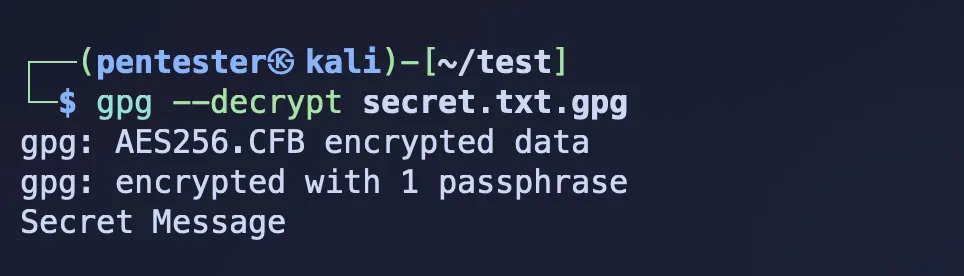
Now, if you want to decrypt this file, you can simply do it by running the below command.
gpg --decrypt secret.txt.gpgAnd it will ask for the same passphrase that you set when you encrypted the file, and that’s it.
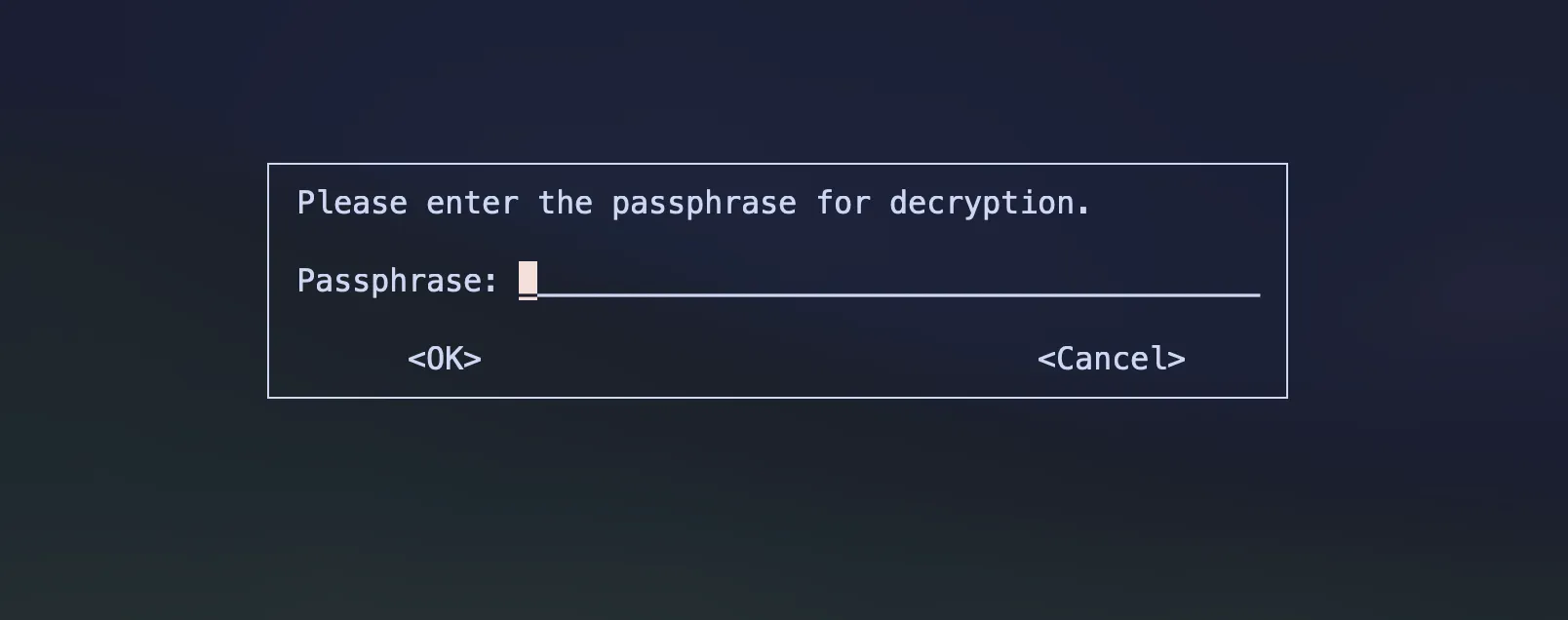 Source by author
 Source by author
If you want to save the output to another file, then you can use the --output flag with the name
of the file.
gpg --output decrypted-secret.txt --decrypt secret.txt.gpgWhat does it mean by Asymmetric Encryption?
This is the opposite of symmetric encryption. Asymmetric encryption means it involves two keys: a public key and a private key. You use the public key for encryption and the private key for decryption. Slightly more weighted than symmetric encryption.
Here are some examples of asymmetric encryption algorithms:
- RSA
- ChaCha20
- ElGamal
These algorithms are based on hard mathematical problems.
Generally, they are used in SSL/TLS (HTTPS), GPG, SSH, auth protocols, and more…
Asymmetric encryption with GPG
This is just a practical example that shows how asymmetric encryption works.
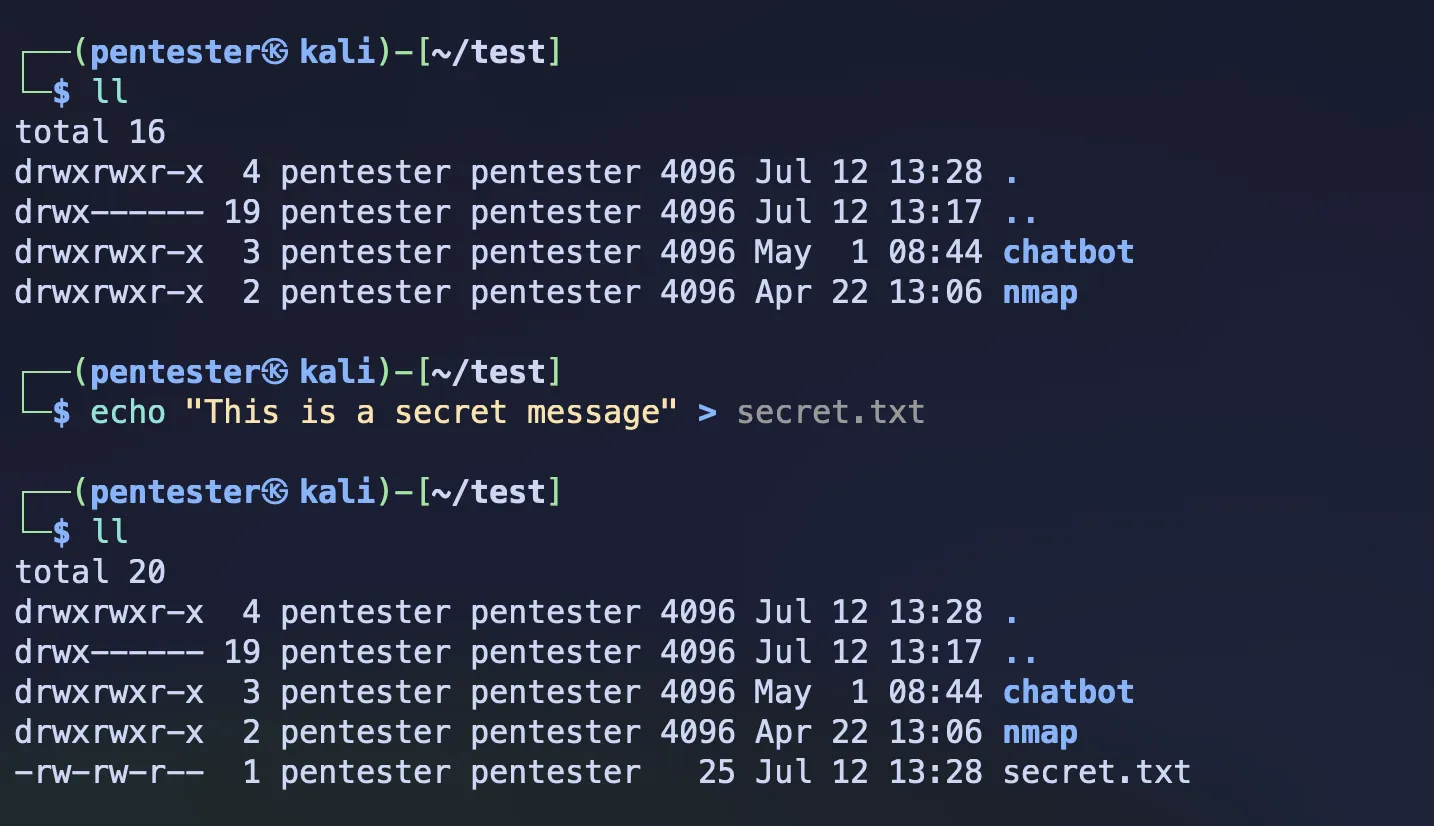
Here is our file that we’re going to encrypt.
 Source by
author
Source by
author
In asymmetric encryption, as you already know, it involves two key pairs separately for encryption and decryption. First, you have to generate the full key pair before the encryption.
gpg --full-generate-key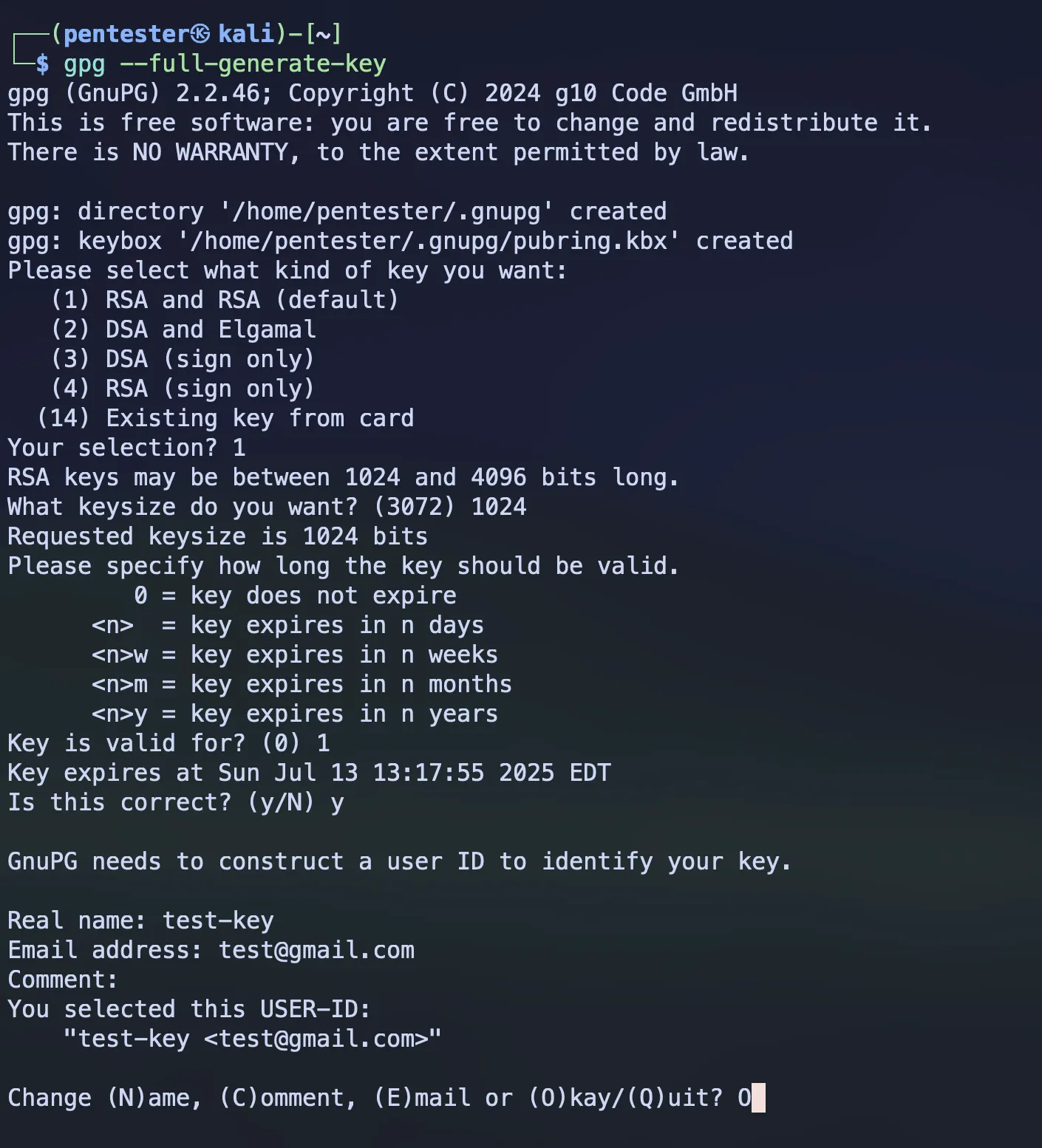 Source by author
After this, it will ask for a passphrase for your private keys. The purpose of this passphrase is to protect your private keys. Even though someone has your private key, without the passphrase, nobody can decrypt the file using that private key.
After the passphrase, it generates the full key pair.
 Source by author
If you want to specifically see the key pair, you can use these commands:
gpg --list-keys --fingerprintgpg --list-keys --keyid-format=long
gpg --list-keys --keyid-format=short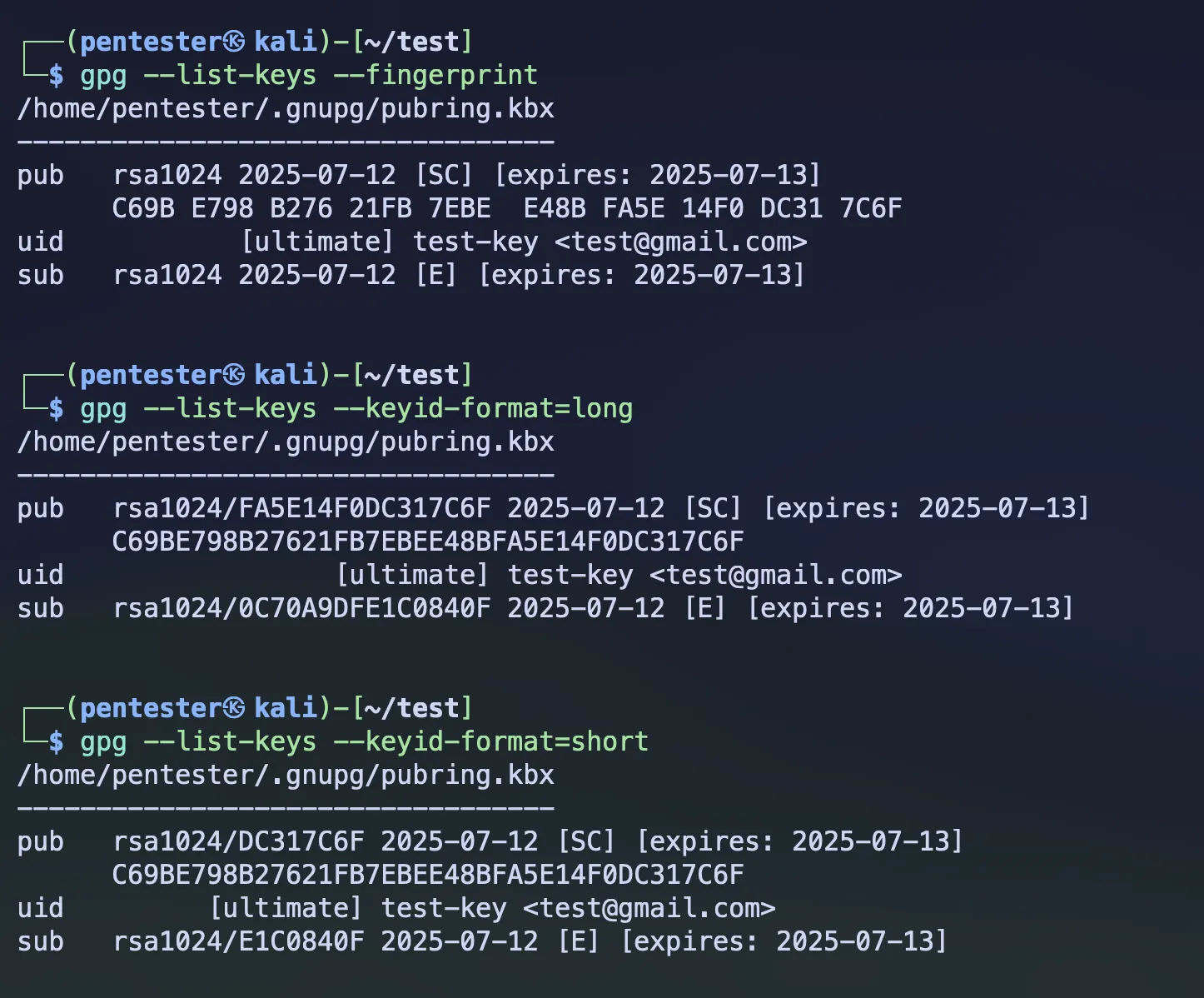 Source by
author
Source by
author
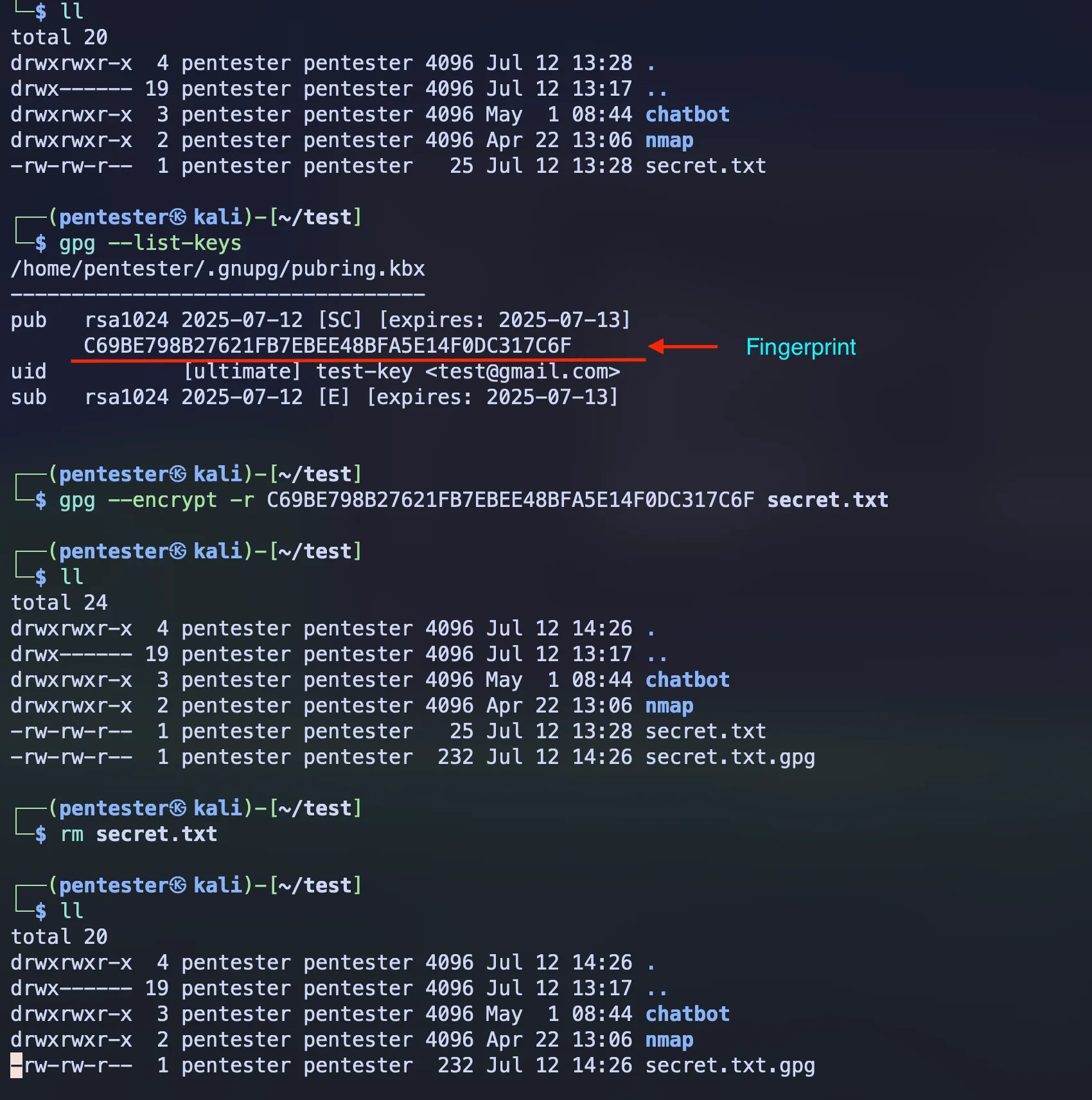
Once you’ve generated the key pair, now you can encrypt your file using your public key.
gpg --encrypt --recipient <fingerprint / keyid (long or short)> secret.txtAs the recipient, you can use the fingerprint of your key or key ID as your preference.
 Source by author
If you want to decrypt the file, then just like we did in symmetric encryption, you can use the below command.
gpg --decrypt secret.txt.gpgOr if you want to take the output to another file, you can use the --output flag.
gpg --output decrypted-secret.txt --decrypt secret.txt.gpg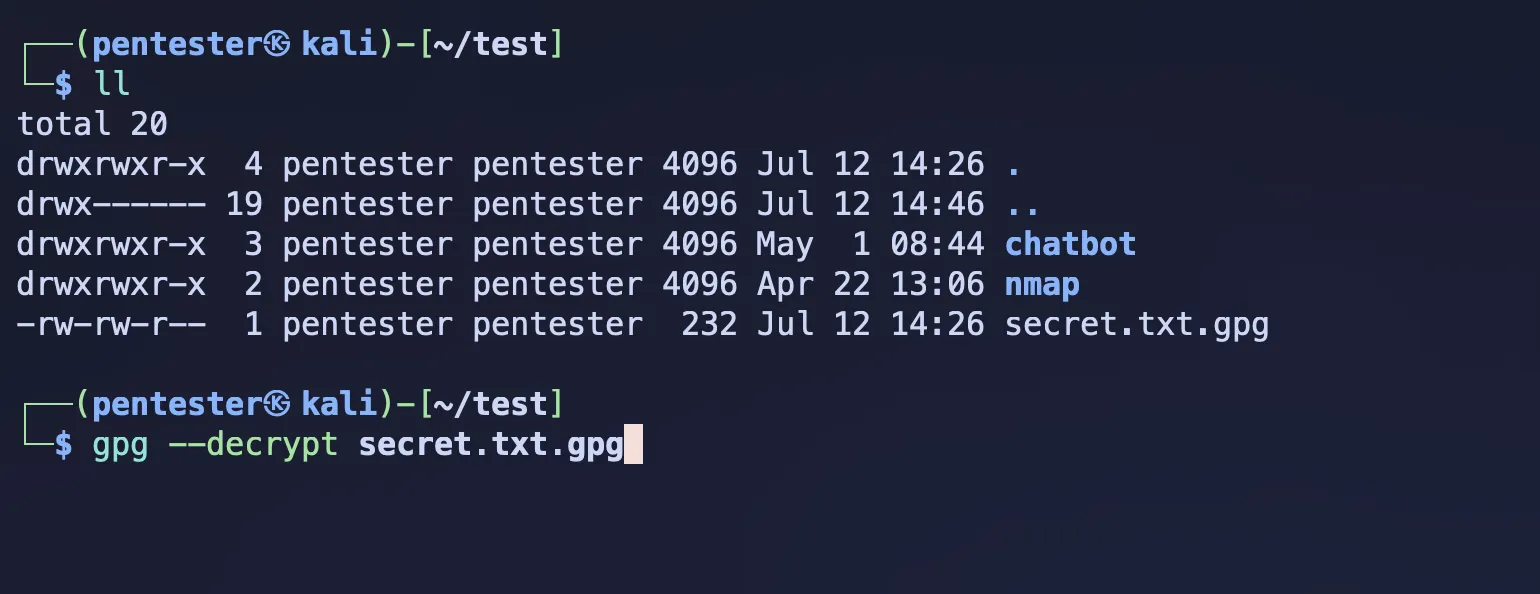 Source by author
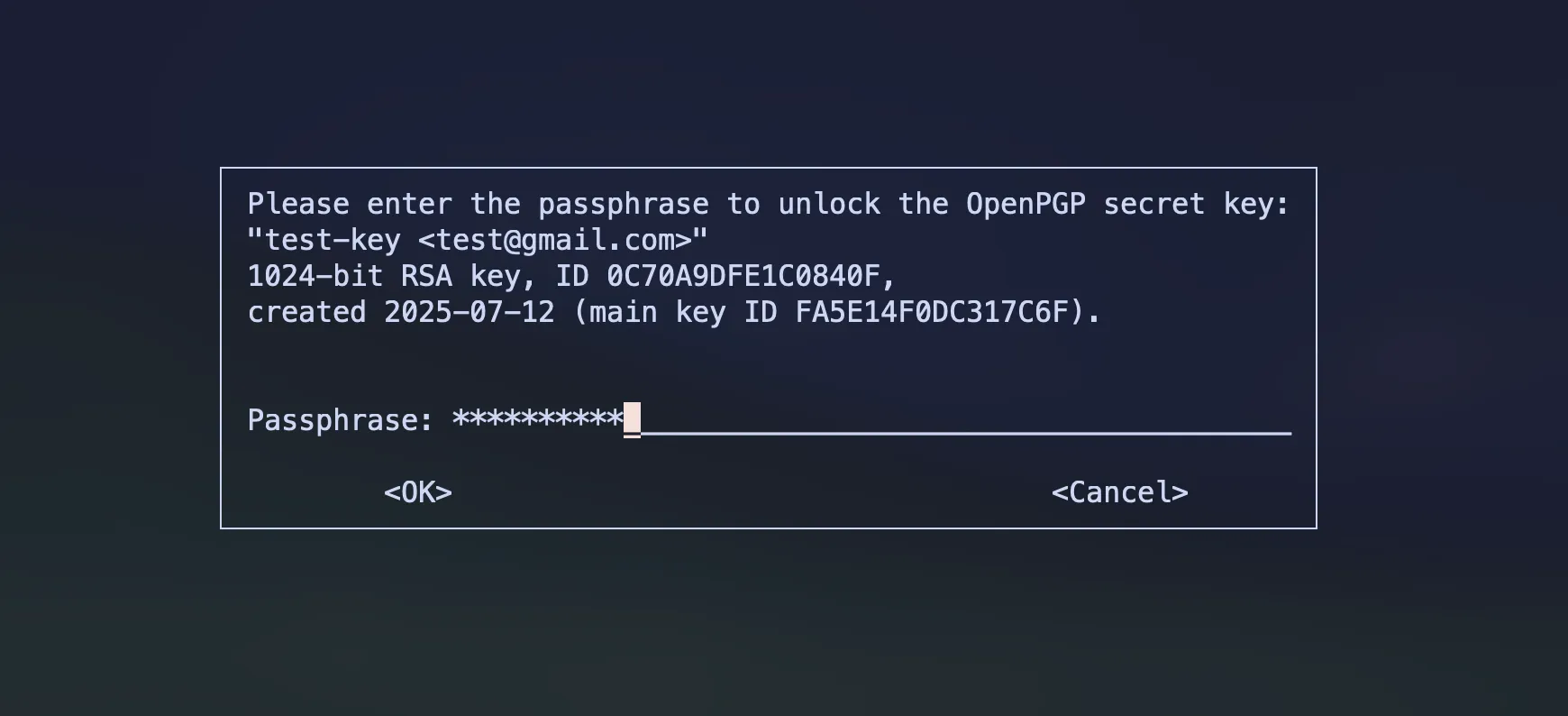
When you execute the above command, it will ask for the passphrase. As I mentioned before, unlike symmetric encryption, this passphrase is not for decryption. It’s for the protection of your private key.
 Source by author
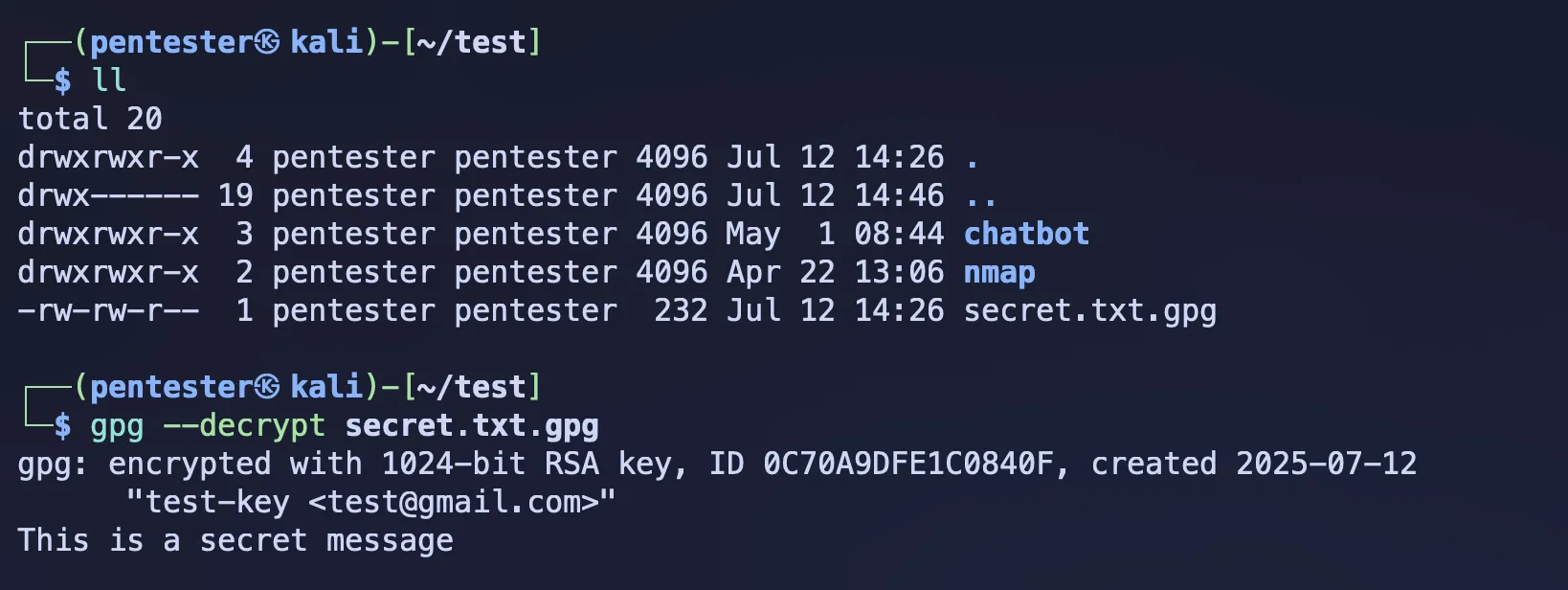
After the passphrase, it decrypts your file using the private key.
 Source by author